

Connect Telegram: token, pairing and notifications
Create a Telegram bot, paste its token in the dashboard and approve your account to chat with your mate. Use /sethome separately to choose where scheduled notifications go.
Before you start
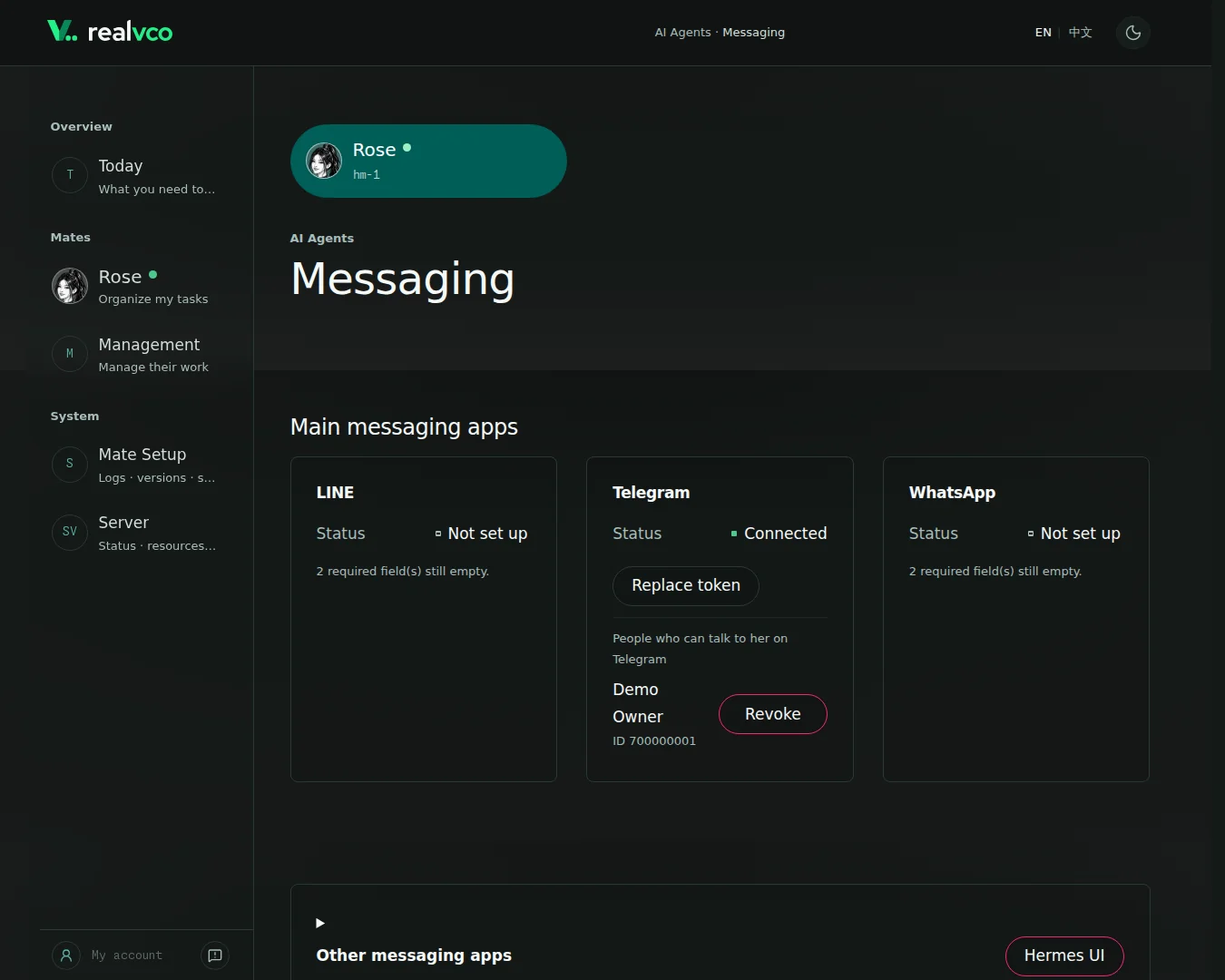
Sign in to Telegram and check that your mate is running with a working model. Open Mate Setup → choose your mate → Messaging. Each mate needs her own bot.
Saving or replacing a token restarts this mate, interrupts work and delays messaging replies. Wait for important work to finish.
1. Create a Telegram bot
- Open the official @BotFather. Check the account and verification mark.
- Send
/newbot. Choose a display name and an available username ending inbot. - Copy the whole token, such as
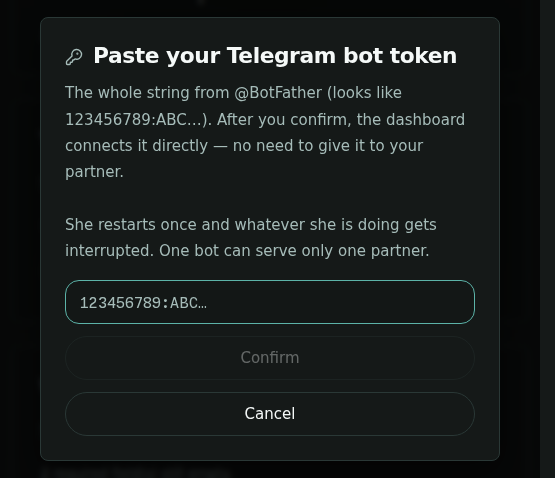
123456789:ABC…. See the official guide for details.
A token controls the bot. Keep it private and paste it only into the dashboard’s Telegram settings, never into chats, support messages or public posts.
2. Paste the token in the dashboard
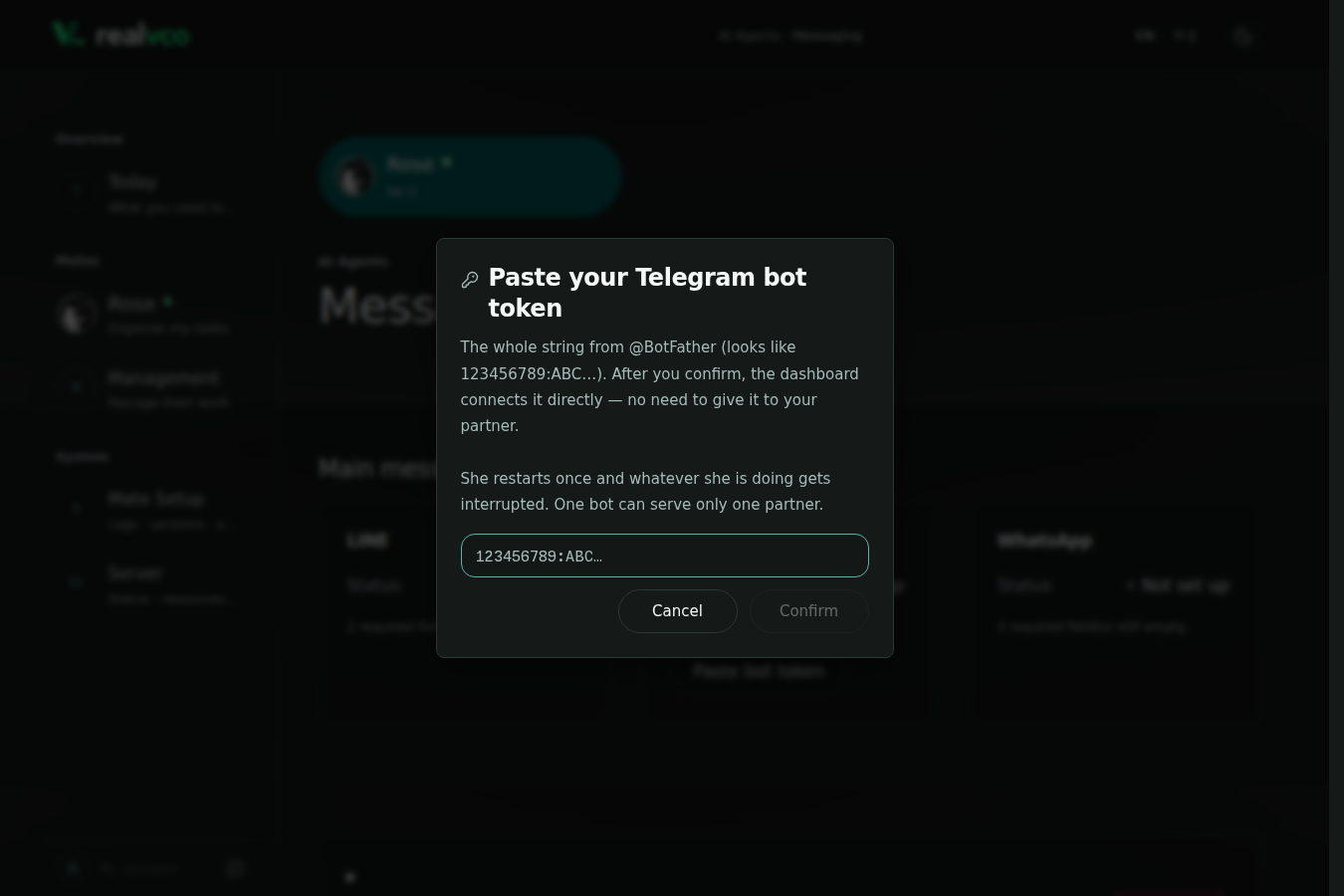
- On the Telegram card, select Paste bot token, paste the whole token and select Confirm.
- Wait while she restarts and connects to Telegram, usually 30–90 seconds. The screen shows the elapsed time. When the screen unlocks and the result says Connected, approve your account. Other results are covered below.
3. Approve your account
- Open your new bot in Telegram and send “Hello.” If it returns
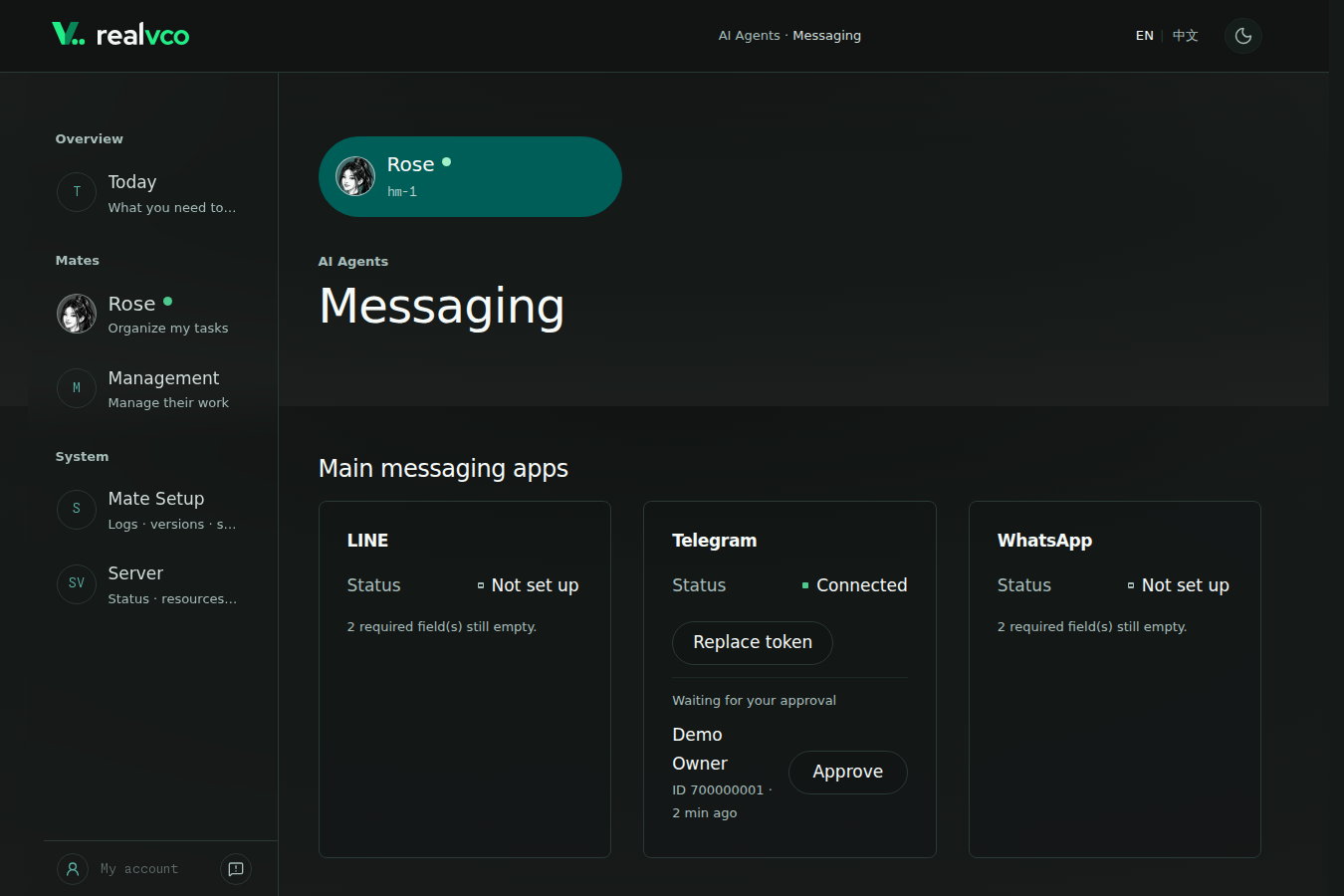
Your pairing codeand a terminal command, you can still complete pairing in the dashboard. - The card refreshes about every 15 seconds. Under Waiting for your approval, check the request’s time, name and Telegram ID. Select Approve and confirm.
- Send a new Telegram message. Messages sent before approval are not answered later.
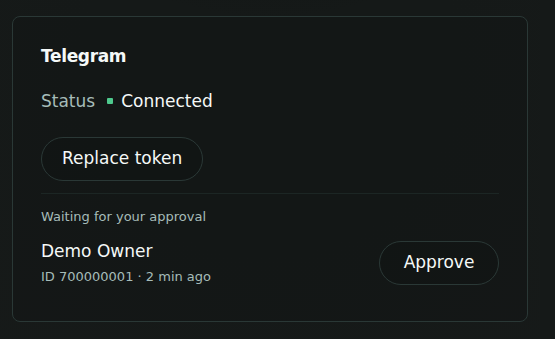
Approve only the request you just sent. Anyone can message the bot and choose their own name; a name alone does not prove identity.
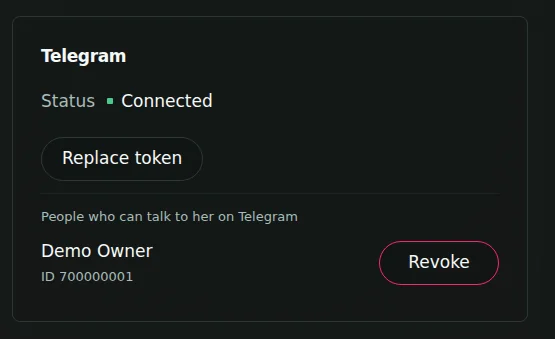
Check that the status is Connected, your account appears under People who can talk to her on Telegram, and a new message gets a reply.
Choose a notification destination
Send /sethome in the Telegram conversation for notifications and check the confirmation. No home channel is set for Telegram means no destination is set. Also check delivery when creating a schedule.
Give someone access or revoke it
Ask a trusted person to message the bot. Verify their identity, approve the request and ask them to send again. Approved people can assign work involving the mate’s memories and data.
To revoke someone’s access, select their Revoke button under People who can talk to her on Telegram and confirm. With normal pairing, their next message creates a new request. If an allowed-users list is configured, messages from outside it are ignored without creating requests; ask support to change that setup.
Replace a token or bot
If a token leaks, revoke it in BotFather and get a new one (official guide). Select Replace token, paste it and confirm. After the restart, check the status and send a test message.
Approved accounts remain approved. Connecting a different bot stops this mate from answering through the old one.
Troubleshooting
| Problem | Next step |
|---|---|
| Invalid token format | Copy the full token from BotFather, including both sides of the colon, and paste it again. |
| Saved, but Telegram rejected it | Get the current valid token from BotFather and use Replace token. |
| Saved but unreachable | The system retries. Check the status in a few minutes; expand Original message if it stays broken. |
| Not connected after two minutes, or no clear result | The screen unlocks and the card keeps checking by itself. Paste again only if Not set up remains. If still connecting, use Report an Issue. |
| No approval request | Wait for a refresh, check the bot and any allowed-users notice, then contact support if needed. |
| Request expired | Requests last one hour. Send another message for a new request. |
| Approved but no reply | Send a new message, then see Mate not responding. |
| Connection error or missing notifications | Expand the original message, hide credentials and see Message problems. |
If the token button is missing, ask support to check the dashboard version. Do not send the token to your mate. For other notices, see Screen messages.
Telegram pairing pairing code phone setup bind account bot password missing alerts
Need a hand? Contact support · Cannot sign in? Email us