

Chat and assign work: new chats, pins and stopping
Choose a mate and open Chats to assign work, read history, pin conversations or stop the current turn.
Where to go
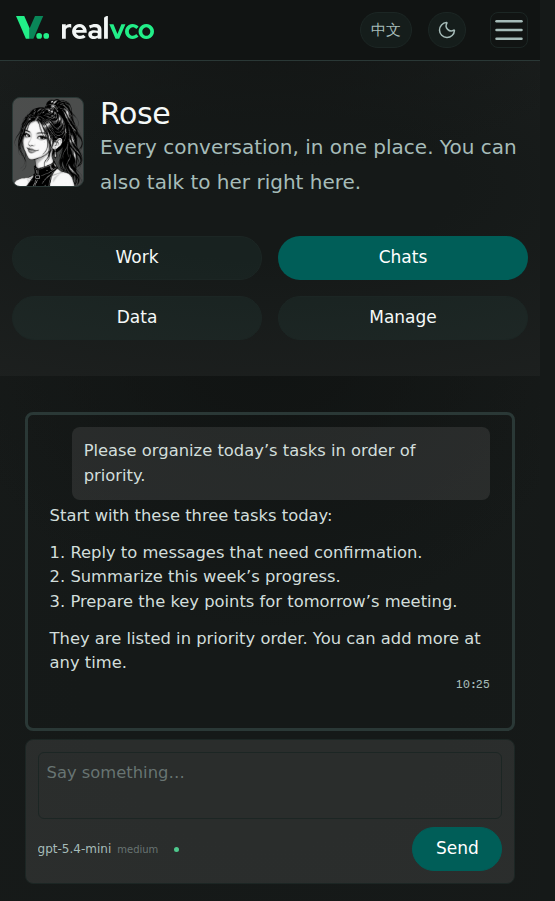
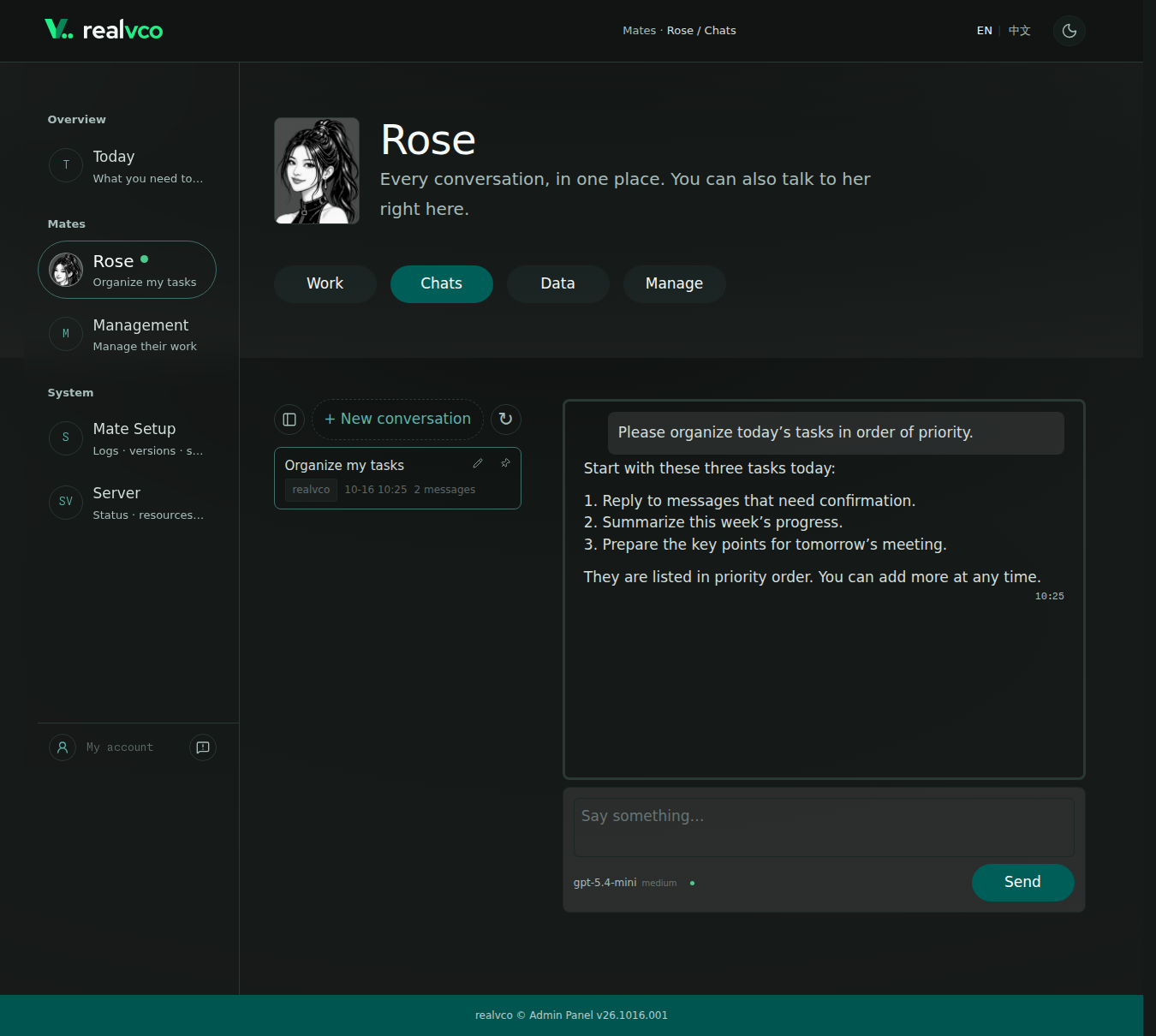
Select the mate in the sidebar → Chats. Check she is running with a working model.
Start and send
- Select + New conversation. Give the goal, sources, output format and whether to discuss or act.
- Enter sends; Shift+Enter adds a line. Wait while she is thinking.
- Check the result and request changes as needed. Open Reports for separately delivered reports.
For example: “Summarize these three documents in five points with sources. Draft first; wait for approval before sending.” Check external access first; keys and passwords belong in settings. Test recurring work before scheduling it.
Add instructions while she works
Type extra details and select Add, for example: “Change the date to Friday. Keep everything else.”
Delivered does not mean handled; check her reply. If uncertain, read the chat before resending. If the turn ends before the addition is handled, check whether it needs assigning again.
History and pins
- Find a chat: open Conversations. Use earlier-conversation or earlier-message controls as needed; expand scheduled conversations to see them.
- Keep it handy: Pin moves the conversation to the top after success; Unpin restores the regular list. If unsupported, use the regular list and ask support about updates.
- Sources and counts: labels identify the origin, not current platform availability. Counts include visible questions and replies, not tool steps.
- Read-only chats: continue in the original app, or start a dashboard chat with the needed background.
Switching pages and drafts
Switching pages or mates within the open dashboard keeps drafts and running work. Return to the original chat to check progress. Save important drafts separately before refreshing or closing the browser.
Delete empty chat permanently removes an unused conversation, not used history. Empty chats and unsent text are separate; creating a chat does not save typed text across devices.
Stop the current turn
Select Stop and wait for the result. History stays; completed actions are not undone and still need checking.
While busy, wait, add instructions or stop. During reconnection or result checks, read the history before resending. For other issues:
- Command approval: see Approve mate actions.
- Incomplete turn: check AI credit and authorization and model status.
- Missing or stale history: see Dashboard data problems.
conversation history task instructions cancel response favourite thread line break
Need a hand? Contact support · Cannot sign in? Email us